


PixelLab - Text on pictures
App Holdings
I spent time with PixelLab as a practical photography editor rather than treating it like a full desktop design suite. Its main appeal is clear: it lets me place text, stickers, drawings, and three-dimensional lettering on images without making me learn a complicated design workflow. That makes it especially useful when I need a quick social post, a thumbnail, a birthday image, or a simple announcement that looks more deliberate than a plain photo.
The app is free to install, aimed at Everyone, and comes from App Holdings. It sits in the photography category, although I would describe its real purpose more narrowly as image decoration and text composition. The current version is 2.1.9, and it runs on devices using Android 6.0 or later. With an average score of 4.0 from around 558 thousand ratings and more than 100 million installs, it has clearly found a large audience. Those numbers do not make it perfect, but they do suggest that its straightforward editing idea has lasting appeal.
How PixelLab feels in everyday use
A quick canvas for text-led images
My first impression was that PixelLab is built around getting words onto an image quickly. Instead of beginning with a long list of photo-correction tools, I can focus on the part many casual projects actually need: choosing a background, adding lettering, adjusting its appearance, and placing extra visual elements around it. That focus keeps the app approachable for someone who wants a result in a few minutes.
The workflow suits small, purposeful jobs. I can start with a photograph, a plain background, or a prepared image and then build a simple composition around it. Text is the center of the experience, so the app makes more sense for a quote card, a sale notice, a channel thumbnail, a profile graphic, or an invitation than for detailed retouching. If my goal is to correct exposure, remove distractions, or create a complex layered illustration, I would look elsewhere first.
What I like is the balance between casual editing and a little visual control. A basic user can add words and stickers without understanding design terminology, while a more patient user can spend time adjusting placement and style. That middle ground is important: the app is not merely a one-tap filter, but it also does not force every project into a professional editing routine.
Latest News

Uber Eats Under Pressure: What Happens When Delivery Goes Wrong
How QR & Barcode Scanner Adapts to Android and iOS Innovations

Why Waze Navigation & Live Traffic Is Your Essential Travel Companion
CapCut Mastery: Unleash Hidden Features for Pro-Level Editing

How OS Updates Enhance Roblox Adventures
Teacher Simulator: Exam Time Turns Quick Classroom Judgments into a Repetitive Loop
What the three-dimensional text is good for
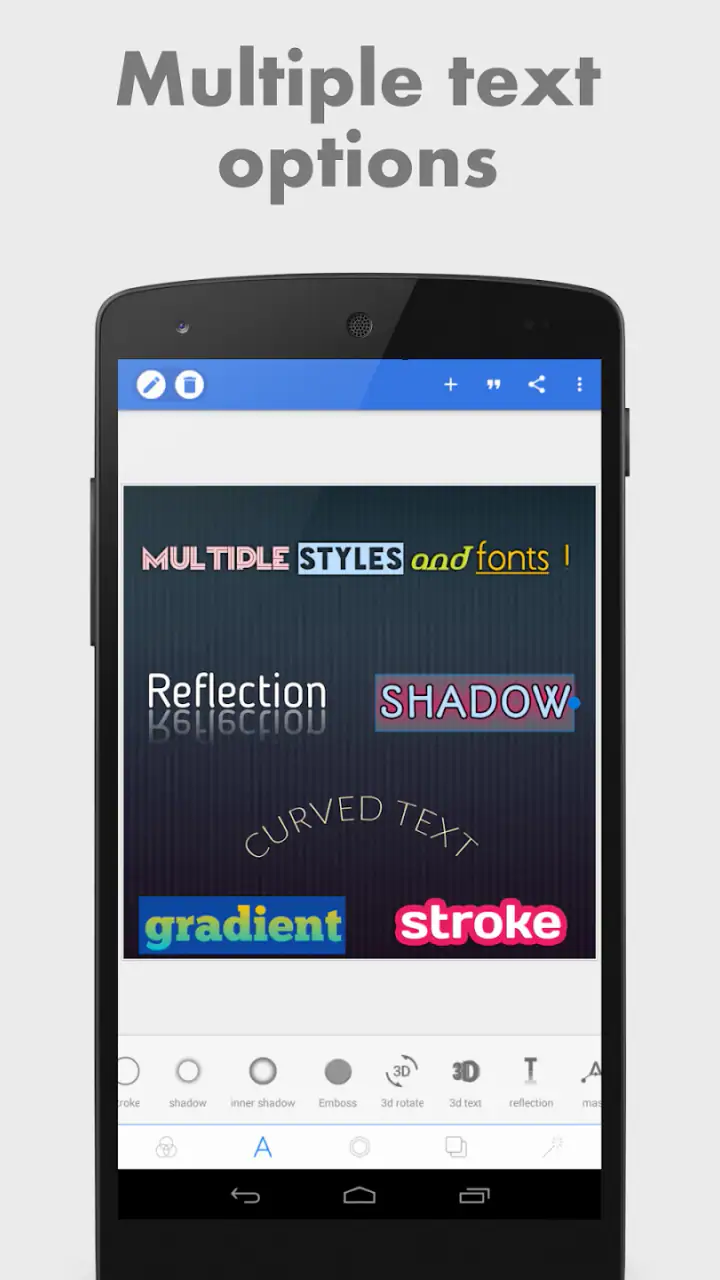
The three-dimensional lettering is one of the more useful reasons to choose this app over a very basic collage editor. It can give a title more presence on a busy image, particularly when a flat line of text would disappear against the background. I found this most convincing when the wording was short. A compact heading can benefit from depth, shadow, or an outlined treatment, while a long paragraph quickly becomes harder to read.
There is a trade-off here. Decorative text can make a small graphic feel finished, but it can also overwhelm the photograph if I keep adding effects. My practical advice is to treat the three-dimensional style as an accent rather than the default for every line. Use it for a title, then keep supporting text simpler. That approach improves readability and saves time spent trying to make several elaborate elements coexist.
Stickers and drawing for personal touches
Stickers are helpful when I want to turn a plain image into something more playful without searching for a separate graphics app. They work well for informal greetings, reaction images, event reminders, and quick posts made for friends. Drawing serves a different purpose: it lets me mark an area, add a handwritten note, or sketch a small detail directly over the picture.
Gallery
I would not confuse these tools with a complete illustration environment. They are most effective when they support the main message instead of becoming the message. A few well-placed marks can make a photo feel personal; a crowded collection of decorations can make the result look unfinished. PixelLab gives me the ingredients, but I still have to make the visual decisions.
A realistic everyday scenario
Imagine I have taken a photograph of a homemade cake and want to send a clean announcement to a family group. I can open the image, add a short message, use a contrasting text color, and place a small sticker near an empty corner. If the background is visually busy, an outline or shadow can separate the words from the cake. I do not need to move the project into a separate design service just to create that one image.
The same workflow works for a school reminder, a sports-team result, a small business post, or a birthday greeting. The important limitation is scale: this is convenient for individual graphics, not necessarily the best tool for producing a large set of branded images with identical spacing and typography. For one-off creations, its direct approach is a strength. For repeated professional production, the manual nature may become tiring.
Speed expectations and the cost of detail
PixelLab feels quickest when I keep the composition modest. Adding one image, a few words, and a small decorative element is the kind of task the app is naturally suited to. The more time I spend experimenting with text treatments, stickers, and drawn additions, the more the experience shifts from instant editing to hands-on arrangement. That is not a flaw by itself, but it changes how I judge speed.
I would not promise the same responsiveness on every phone. The app supports an older Android baseline, so it is likely to be considered by people using a wide range of devices rather than only recent flagship models. On a less capable phone, large images and elaborate compositions are the situations where I would expect the greatest strain. Keeping the source image sensible for the intended destination is a useful habit, especially when the final graphic is only going to a messaging app or social feed.
There is also a human side to performance. PixelLab can feel fast because it reduces the number of decisions needed to begin. I am not forced to build a project from a blank professional interface. However, the same freedom can invite endless tweaking. If I want a quick result, I need to decide early on which text style and decorations actually help, rather than repeatedly testing every option.
What happens during heavier editing
Heavy use, in my view, means combining a detailed photograph with several text elements, stickers, and drawing rather than simply editing a single caption. That is where organization matters. I prefer to place the main message first, check whether it remains readable, and only then add decoration. This prevents a common problem: spending time on visual effects before discovering that the central text has no comfortable space.
Large or visually complex projects also make recovery more important. I recommend saving an intermediate version before making a major change, particularly if the image is important or difficult to recreate. A staged workflow is safer than treating every edit as disposable. First establish the background and main wording, then refine the appearance, and finally add optional elements. If something goes wrong, I can return to a simpler state instead of rebuilding everything from memory.
That advice is not unique to mobile editing, but it matters here because the app encourages experimentation. A user can keep adjusting the composition until it looks right, and that is enjoyable when the project is casual. It becomes frustrating when the image is needed immediately. For urgent work, I would keep the design restrained and avoid making the final result dependent on many small adjustments.
Stability and reliability in a real workflow
Reliability is more than whether an editor opens. I also care about whether I can understand the current state of a project, undo an unwanted change, and reach a finished image without losing the original. PixelLab is easiest to trust when I treat the source photo as separate from the edited result. I keep the original available, work in stages, and avoid assuming that a complicated composition is impossible to recreate.
The app’s focused purpose helps with predictability. I know I am opening it to create a text-heavy image, not to manage an entire professional photography pipeline. That narrower purpose makes it easier to choose the right tool at the start. If I need extensive corrections first, I would edit the photograph in a dedicated photo editor and then use PixelLab for the lettering and finishing touches.
For important work, I would also inspect the final image before sharing it. Text that looked clear while editing may feel too small once viewed in a chat preview, and a sticker near the edge may compete with the crop used by another platform. A quick check at the size people will actually see is one of the most useful reliability habits with any mobile graphics app.
Resource demands and device limitations
Because PixelLab can be installed on Android versions going back to 6.0, it is accessible to people who are not using the newest hardware. That is a meaningful advantage for a free photography tool. At the same time, compatibility does not guarantee identical comfort across devices. Screen size, available memory, image dimensions, and the phone’s general age can all affect how pleasant detailed editing feels.
On a smaller screen, precise placement may take more patience. A title that looks balanced on the canvas can appear too close to an edge when I inspect it carefully. On an older device, I would avoid loading an unnecessarily huge photograph when a smaller copy is enough for the intended destination. This is not about chasing technical perfection; it is about matching the working material to the final use.
I also see a practical reason to avoid cluttered projects on modest phones: simpler compositions are easier to review, revise, and export. If the device begins to feel uncomfortable during a session, reducing the number of decorative elements is more sensible than continuing to pile on effects. PixelLab is at its best when I use its tools selectively.
Where it beats the usual alternatives
Compared with a standard gallery editor, PixelLab offers a more deliberate approach to typography. A gallery tool may be faster for a filter, crop, or basic caption, but it often feels limited when the words are the main subject. Here, I can treat the text as part of the design rather than as a small label attached at the end.
Compared with a full template-based design platform, PixelLab feels less tied to prebuilt layouts. That gives me more freedom for an unusual photograph or a simple custom arrangement. The trade-off is that I have to make more choices myself. A template service may produce a polished result faster when I need a poster with a conventional structure, while PixelLab is more appealing when I already know where I want the message to go.
Compared with a professional desktop editor, it is easier to approach but less suitable for demanding production work. I would not choose it for a complex brand system, advanced image correction, or a project that depends on a broad desktop-style workflow. Its strength is not replacing every editor; it is making text-centered image work comfortable on a phone.
Who should use it, and who should skip it
I would recommend PixelLab to students, casual creators, small sellers, family users, and social-media users who regularly need to add noticeable text to photographs. It is also a good fit for someone who finds professional design software intimidating but wants more control than a basic caption tool provides. The free entry point makes it easy to test without committing money first.
I would be more cautious if your priority is automatic enhancement, advanced retouching, batch production, or strict brand consistency across many graphics. A dedicated photo editor is better for image correction, while a template-focused design app may be better for repeatable marketing layouts. If you dislike manually positioning elements, PixelLab may feel more hands-on than expected.
The app includes in-app purchases priced at $2.99 per item, so I would check the available editing extras before planning a workflow around them. The core fact that it is free is attractive, but “free” does not mean every possible addition is included. For occasional users, the basic experience may be enough; frequent creators should decide whether optional purchases are worthwhile for the way they work.
Small techniques that improve the result
My first tip is to design for the final viewing size, not only for the editing canvas. If the image will appear as a small preview, a short high-contrast title is usually more effective than a delicate line with several decorative effects. Check the composition at a reduced size before finishing, because this reveals weak contrast and cramped spacing quickly.
Second, use empty areas in the photograph as natural text space. Rather than covering the subject, look for a calm section of sky, wall, table, or background. If the photo has no quiet area, a restrained outline or shadow can help, but it should support readability rather than become the visual focus.
Third, separate the message from the decoration. I like to create the main text first, position it carefully, and only then add a sticker or drawing. This makes it easier to tell whether an element contributes anything. It also gives me a simpler fallback version if the decorated result becomes too busy.
Finally, keep an untouched copy of the source image. That lets me try a bold text treatment without worrying that the original photograph is gone. It is a small habit, but it makes experimentation safer and encourages better decisions.
My performance verdict
PixelLab feels most convincing when judged as a focused mobile tool for text-led image creation. It can be quick for simple graphics, flexible enough for personal styling, and accessible on older Android devices. Its resource demands are likely to matter most when I bring in large images or build crowded compositions, so I would keep heavy projects organized and modest when working on less powerful hardware.
Its reliability comes from a clear purpose and a workflow that is easy to understand, provided I save thoughtfully and review the final image before sharing. I would not call it a replacement for every photography or design app, and users seeking automatic corrections or advanced professional controls should choose a different category of tool.
Still, for the everyday job of turning a photo into a readable, personalized graphic, I find it genuinely useful. The free price, Everyone age rating, broad adoption, and straightforward focus make it easy to recommend to a friend who wants more than a basic caption but less complexity than a full design suite. If your images often need a strong title, a playful sticker, or a quick custom message, PixelLab is a practical choice; if the photo itself needs serious correction, use a dedicated editor alongside it.
FAQs for PixelLab - Text on pictures
What features does PixelLab offer for text editing on pictures?
PixelLab provides a wide range of text editing features, including over 100 fonts, 3D text effects, and various text styles such as shadows, reflections, and embossing. Users can also adjust text size, color, and alignment, and add stickers or background images. These features make it versatile for creating professional-looking designs.
Is PixelLab suitable for beginners?
Yes, PixelLab is designed to be user-friendly, making it suitable for beginners. The app has an intuitive interface with straightforward navigation, allowing users to easily access and utilize its features. Additionally, there are tutorials and guides available to help new users understand how to effectively use the app’s tools.
Does PixelLab support layers and complex designs?
PixelLab supports layers, allowing users to create complex designs by stacking multiple elements. This feature is particularly useful for users looking to create intricate graphics, as it enables them to manage different aspects of their design separately. Users can add, delete, and reorder layers to fine-tune their creations.
Can I use PixelLab offline, or do I need an internet connection?
PixelLab can be used offline, which is a significant advantage for users who want to edit on the go without relying on an internet connection. All core functionalities, such as text editing and image manipulation, are available offline. However, some features, like downloading new fonts or updates, might require an internet connection.
How does PixelLab handle exporting and sharing images?
PixelLab offers several options for exporting images, allowing users to choose their preferred format and quality. Images can be saved directly to the device or shared via social media platforms, email, or messaging apps. This flexibility ensures that users can easily distribute their creations in the format and quality they need.
Pros
- User-friendly interface for quick edits.
- Wide range of fonts and text effects.
- Customizable background options.
- Supports image import and export.
- Lightweight app with minimal lag.
Cons
- Ads can be intrusive at times.
- Limited advanced editing features.
- In-app purchases for premium content.
- Occasional crashes on low-end devices.
- No direct cloud save options.


